
How to set up a time clock tablet in under 10 minutes
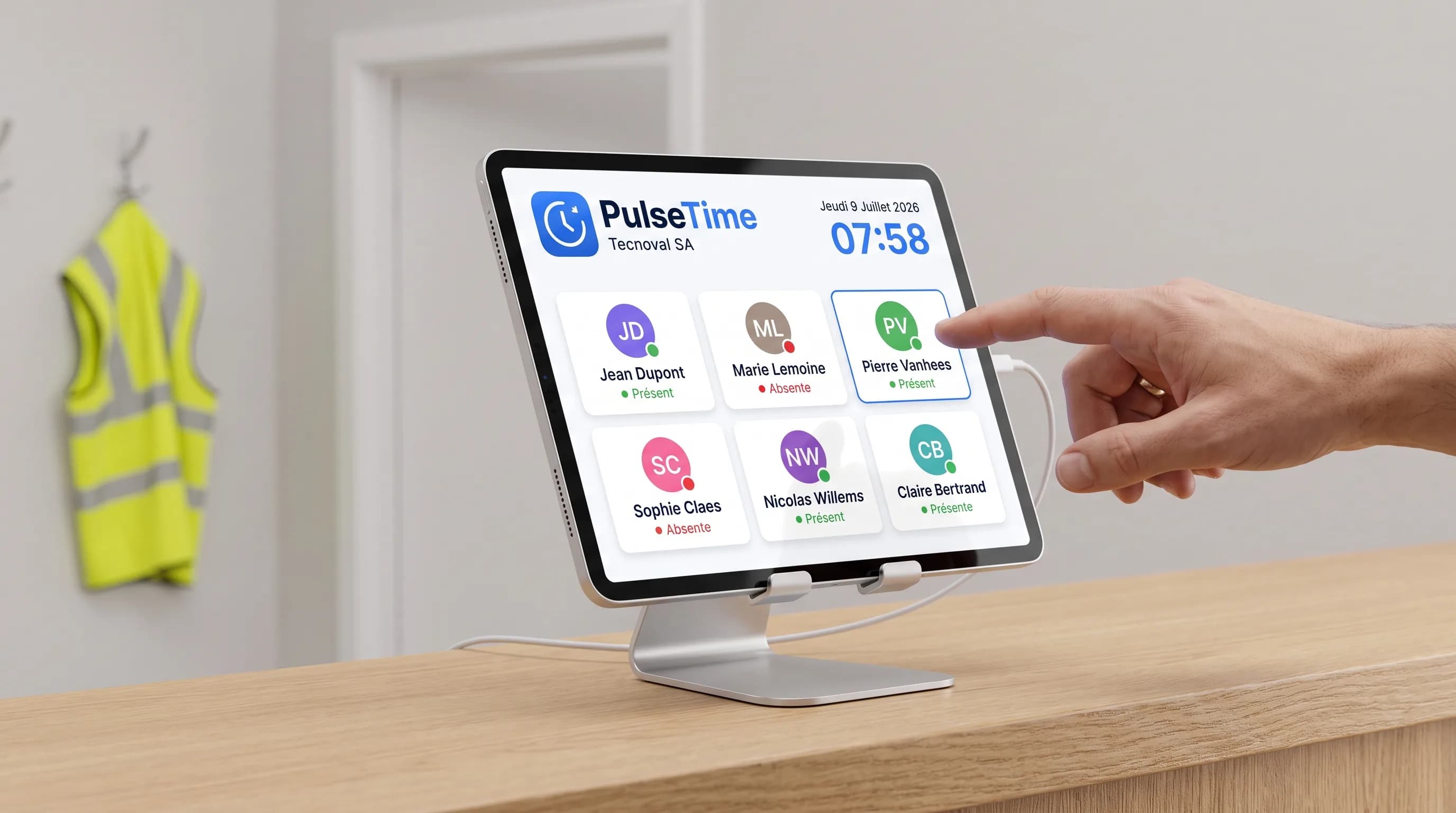
A time clock at the entrance used to mean a punch machine costing hundreds of euros, wiring, and a technician. Today, it's a tablet at the front desk and ten minutes of your time. Here's the complete walkthrough, step by step, stopwatch in hand.
What you need
- ✓A tablet, any tablet: an iPad, an entry-level Android tablet, or the one sleeping in a drawer. All it needs is a browser and Wi-Fi;
- ✓A plugged-in charger, since the tablet stays on all day;
- ✓A PulseTime account: the free trial is enough to test everything.
That's it. No proprietary punch clock, no badges to order, no hardware subscription. If the tablet ever breaks down, you pair another one in two minutes: no data is stored on the device itself.
Step 1: activate the kiosk (2 minutes)
From your PulseTime workspace, open the Time clock kiosk menu and tap "Pair a tablet". The screen shows a temporary pairing code. That's what links the tablet to your company, without typing any login or password on the tablet itself.
Step 2: pair the tablet (3 minutes)
On the tablet, open the browser, go to the PulseTime pairing page and enter the code. Your team grid appears immediately: every team member is there with their initials and colour.
One last smart move: pin the kiosk to the tablet's home screen ("Add to Home Screen"). It then launches full screen, like a real kiosk app, with no address bar.
Step 3: send the PIN codes (3 minutes)
On a shared kiosk, everyone identifies with a personal 4-digit PIN. From each team member's profile, one click sends them their PIN by email or SMS. That code guarantees nobody clocks in for a colleague, and it's what makes the record reliable.
You stay in control per team member: the kiosk can be allowed for the whole team or only certain profiles, and a forgotten code is regenerated in one click.
Step 4: place it at the entrance (2 minutes)
A stand costing a few euros, the charger plugged in, and the tablet finds its spot where everyone walks by: the workshop entrance, the office reception, the changing room. The right spot is the one people pass naturally when arriving and leaving. Clocking in should never be a detour.
Day to day: five seconds per punch
- ✓The team member arrives and taps their name on the grid;
- ✓they enter their 4-digit PIN;
- ✓they tap "Start": clocked in, the time is recorded.
Same gesture in the evening to clock out. On the grid, a green dot shows who is currently working. On your side, the dashboard shows presence in real time, with hours consolidated to the minute. A team member who spots a mistake can even submit a correction request directly from the kiosk, which you then approve.
The questions we get asked
"What about people without a smartphone?" That's exactly the use case: the kiosk requires no phone, no email address, no app to install. A name, a PIN, done.
"Several entrances, several buildings?" Pair several tablets: each gets its own name ("Main entrance", "Workshop"…) and the records show which kiosk they came through.
"A large team on a single grid?" Beyond a certain number of team members, the grid automatically switches to search mode: everyone types the first letters of their name and their card appears instantly.
"What if we prefer the smartphone or QR code?" The methods combine freely: the workshop clocks at the kiosk, mobile teams on their phones, and everything lands in the same place.
Ten minutes today, compliant for 2027
The general working-time recording obligation announced for 2027 requires an objective and reliable system: a purely theoretical schedule won't be enough. A time clock kiosk ticks exactly that box, with every punch timestamped, tied to the right person, stored and exportable. With PulseTime, the trial is free for 15 days, no commitment, and your kiosk can be up and running before your next coffee break.
This article is for information only and does not constitute legal advice.